
Ekky Ekky LLC / Support
How can we help?
Help with our games and apps, from a missing purchase to a fresh start.
Lazy Space Shooter
The details for the app you are using.
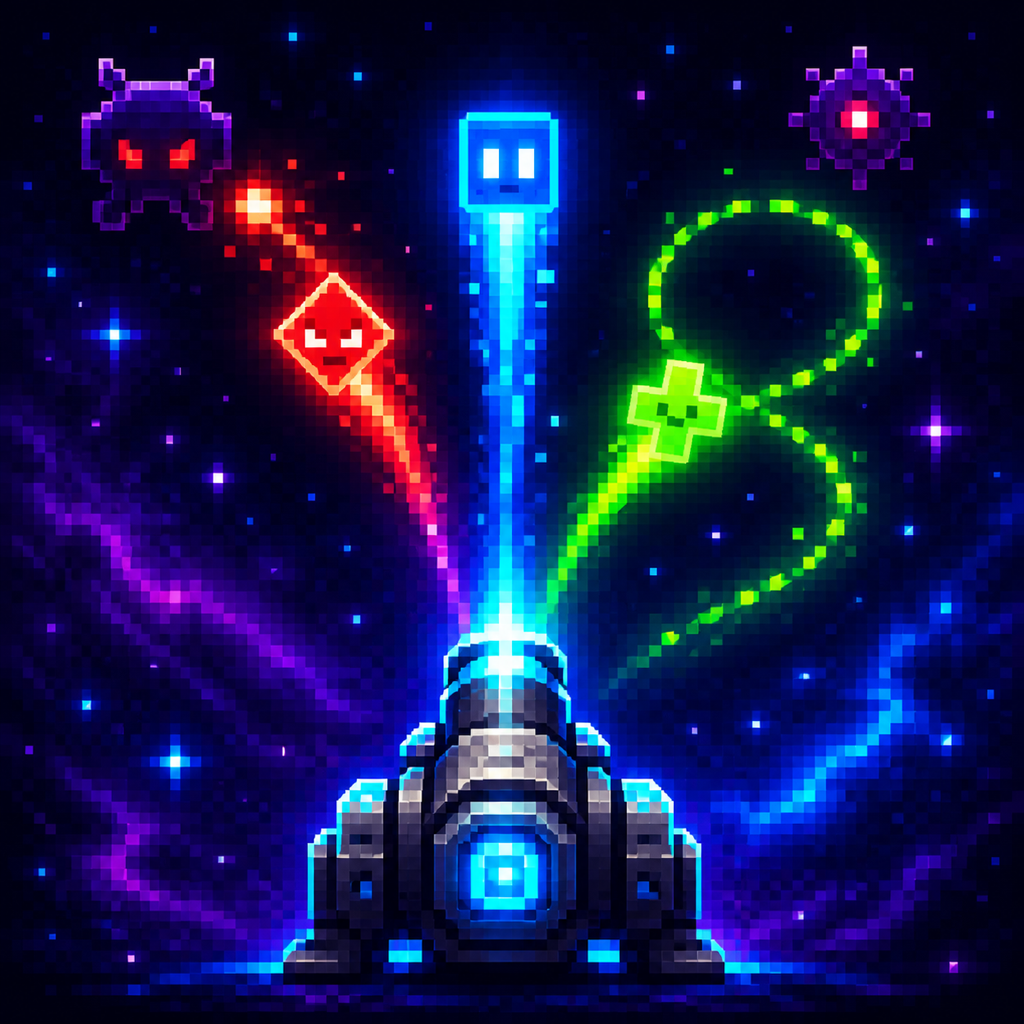 Lazy Space ShooterUpgrades, rankings & purchases
Lazy Space Shooter help
Help with battles, equipment, rankings, purchases, and privacy choices.
New name, same game
Lazy Space Shooter was previously called Tap for a pixel. The new name is rolling out across the stores and app updates. Update the existing app to keep your saved progress, equipment, and purchases. Do not uninstall it as part of the name change.
At a glance
- Play an endless one-thumb arcade defense with manual fire, automatic fire, an upgradeable rechargeable Pulse, and optional accelerated automatic play.
- Survive changing fleets, mini-bosses, regenerating shield networks, Charger and Kamikaze surges, and late-game Reapers, Stingers, Fatherships, and Plasma Bosses.
- Choose temporary upgrades during a run and spend earned boss coins between attempts on permanent hull, shield, damage, Pulse, auto-aim, auto-dodge, support, automatic-upgrade, and upgrade-path equipment.
- Play without an account or subscription. Platform leaderboards and a one-time Remove Ads purchase are optional.
Download and purchases
Get Lazy Space Shooter on the App Store or Google Play.
Lazy Space Shooter is free to download, with no subscription. Remove Ads is an optional one-time purchase with a USD 4.99 base price. It removes interstitial ads and does not buy boss coins or unlock game content. Apple or Google Play displays the local price. Buy or restore it in Settings using the store account that owns the purchase. Apple purchases and Google Play purchases are separate and do not transfer between platforms.
For payment or refund help, use the purchase history and support options in the store where you paid. If ownership is missing, connect to the internet, check the store account, and choose Restore Purchases.
Progress and equipment
Choose temporary upgrades after each wave. Boss coins earned in play buy permanent equipment between attempts. Wave checkpoints, equipment, coins, settings, tutorial progress, and saved upgrade paths remain on this device; there is no developer cloud sync. Closing the post-defeat equipment shop returns to the starting screen.
Shield and automatic upgrades
Shield Core protects your ship from one hit when charged, then recharges. Its glowing hull outline shows when it is ready. Owning it adds Shield Regen to the super-upgrade choices. Optional AUTO UP chooses a balanced mix of run upgrades and turns off after defeat. Capital Hunter and Shield Breaker join the basic choices from Wave 61.
Ads and privacy choices
Without Remove Ads, a non-personalized interstitial may appear after defeat when the equipment shop closes. It may appear once 15 minutes have passed since launch and the previous ad, or after every third defeat. Showing an ad restarts both counts.
Refusing consent, an unavailable ad, or a network error never blocks the next attempt. Where required, Settings → Privacy Choices reopens the consent form. Read the privacy choices guide.
Rankings and reset
The trophy button shows device scores and optional global all-time and weekly rankings. iPhone uses Game Center; Android uses Google Play Games. The two services have separate leaderboards. If sign-in or the service is unavailable, device scores remain accessible.
Reset Game requires confirmation, clears gameplay progress, equipment and coins, and restarts the tutorial. It does not cancel Remove Ads or erase submitted platform scores. On Android, audio and privacy preferences may remain. Settings also lets you end a round or replay the tutorial.
Important limitations
- The iPhone edition requires iOS 17 or later. The Android edition requires Android 10 or later and a compatible 64-bit ARM device.
- Progress and equipment stay on the device. Android cloud backup is disabled. Apple-managed backups depend on device settings. Reinstalling can lose local progress; there is no developer cloud restoration or cross-platform save transfer.
- Later enemy fleets and upgrade-path starting waves require progression. Automatic dodging does not guarantee protection.
A few quick answers
Something isn't working
Close and reopen the app, then check for an update in the store. If the problem continues, tell us the app name and version, your device and operating-system version, and the steps that led to it. For a visual problem, a screenshot can help after you remove private information.
Check the app's save and backup guidance before deleting or reinstalling it. Some progress and artwork cannot be recovered after local data is removed.
A purchase is missing
Use the same Apple or Google Play account that made the purchase. For a paid download, re-download from that account's purchase history. For a restorable in-app purchase, use the app's Restore Purchases control where available.
Consumable items and saved progress are different from restorable purchases. Check the app's guidance; a restore does not necessarily recover spent items, drawings, or local saves. Apple and Google Play purchases generally do not transfer between stores.
Billing or a refund
The store where you paid handles payment and refund requests. Visit Apple purchase support or Google Play refund help. For another payment method, use the service named in the app's purchase guidance.
We can help investigate missing content, but do not send payment-card details, passwords, or verification codes.
Progress, backups, and privacy
Storage and backup options differ by app. Read your app section for its save, export, and deletion instructions. A purchase account alone does not mean your progress is backed up.
Our Privacy Policy explains app data, online services, and how to make a privacy request. Studio support is not an emergency or medical service.