Ekky Ekky LLC / Support
How can we help?
Help with our games and apps, from a missing purchase to a fresh start.
A few quick answers
Something isn't working
Close and reopen the app, then check for an update in the store. If the problem continues, tell us the app name and version, your device and operating-system version, and the steps that led to it. For a visual problem, a screenshot can help after you remove private information.
Check the app's save and backup guidance before deleting or reinstalling it. Some progress and artwork cannot be recovered after local data is removed.
A purchase is missing
Use the same Apple or Google Play account that made the purchase. For a paid download, re-download from that account's purchase history. For a restorable in-app purchase, use the app's Restore Purchases control where available.
Consumable items and saved progress are different from restorable purchases. Check the app's guidance; a restore does not necessarily recover spent items, drawings, or local saves. Apple and Google Play purchases generally do not transfer between stores.
Billing or a refund
The store where you paid handles payment and refund requests. Visit Apple purchase support or Google Play refund help. For another payment method, use the service named in the app's purchase guidance.
We can help investigate missing content, but do not send payment-card details, passwords, or verification codes.
Progress, backups, and privacy
Storage and backup options differ by app. Read your app section for its save, export, and deletion instructions. A purchase account alone does not mean your progress is backed up.
Our Privacy Policy explains app data, online services, and how to make a privacy request. Studio support is not an emergency or medical service.
Your game or app
Open your app for the details that matter to you.
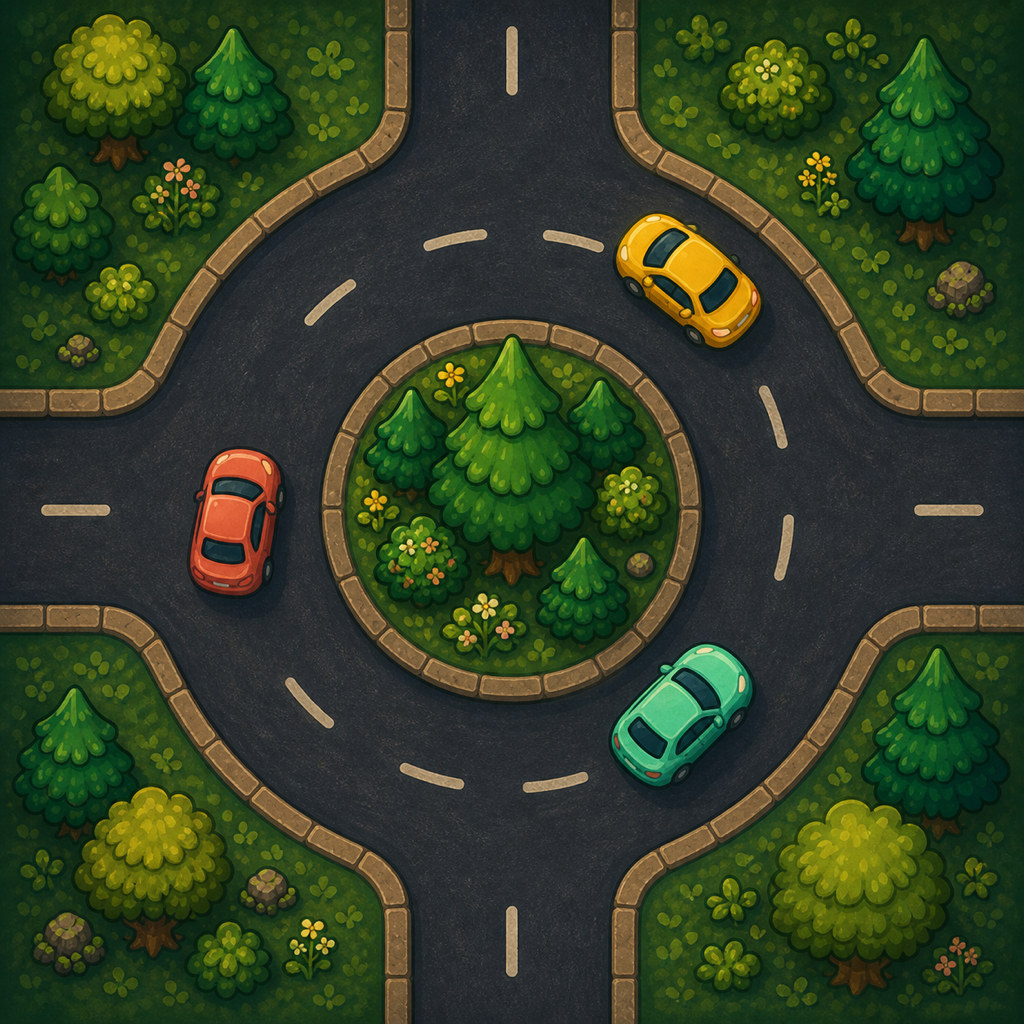 Tiny Traffic CircleModes, progress, purchases & settings
Tiny Traffic Circle help
Help with playing, saved progress, and purchases. Available on iPhone with iOS 17 or later and Android phones and tablets with Android 8 or later.
At a glance
- How to play Find a safe gap. Tap a road to release its waiting vehicle. Avoid collisions to build your streak and score.
- Game modes Play your way. Select Standard, One Life, or Zen, then tap Endless (formerly Start). My Best keeps records by map and mode.
- Story Mode Complete the notebook. Finish each day to unlock the next; tap unlocked cards to replay. The original 16 days span Evergreen and Sunset Coast. The upcoming Midnight chapter adds eight more, for 24 days. Install the latest available update to see the chapters included in your version.
Menu names and updates
Look for Story Mode, Endless, and Daily Challenge on the main menu. Older versions may use different names; update the game to follow these instructions.
Leaderboards
Open Leaderboards, choose a map and Standard or One Life, and sign in when prompted. iPhone uses Apple Game Center; Android uses Google Play Games. Their rankings are separate. Zen and Story Mode are not ranked.
Sign-in is optional. You can play and save personal records offline. On Android, only runs played while connected to a Play Games profile are submitted; earlier unsigned-in scores are not added later.
If rankings will not open, check your internet connection and Game Center or Play Games sign-in, then try again. On Android, update the game through Google Play and check your Play Games profile.
Daily Challenge and discoveries
Daily Challenge gives players the same three-life challenge each day and resets at midnight Eastern Time. Tap its menu row to play. The trophy opens Game Center rankings on iPhone or Google Play Games rankings on Android.
The Vehicles guide (formerly Cars) records discoveries and explains vehicle behavior. Story Mode progress is separate from Endless records.
Saved progress
Records, discoveries, Story Mode progress, unlocks, and settings stay on your device. They do not automatically sync between devices or platforms. Device backups may include them.
Deleting the app or clearing its Android storage removes local progress. It does not delete provider-held leaderboard scores or purchases. See data deletion instructions.
Ads and an extra life
After losing three lives in Standard, choose Watch Ad · +1 Life for one optional continue, or End Run. Finish the ad to receive one life. This is available once per run, not in One Life or Zen. There are no banner ads or forced interstitials.
If an ad is unavailable, check your connection and choose Try to Load Ad, or end the run. Availability is not guaranteed. On Android, complete any required privacy message first; change choices in Settings → Privacy Choices when available.
Ads may load before you choose to watch, so skipping one does not prevent all ad-related data processing.
Ad-Free Play on iPhone
Tiny Traffic Circle is free to download. Open the crossed-out Ads icon for the optional one-time Ad-Free Play purchase: $2.99 in the US, with local pricing shown by the App Store. It stops Google ads from loading and gives one ad-free extra life per Standard run. There is no subscription or Family Sharing.
To restore it, choose Restore Purchases using the Apple Account that bought it. Check your App Store connection if the purchase is unavailable. Pending purchases activate when Apple approves them; refunds or revocations remove the benefit. Contact Apple for billing or refund requests.
Permanent Ad-Free on Android
On Android, open Permanent Ad-Free on the main menu. This separate one-time Google Play purchase costs $2.99 in the US; Google shows your local price before confirmation. It stops ads from loading and showing, and includes one extra heart without an ad, once per Standard run. There is no subscription. Purchases do not transfer between Apple and Google accounts.
Use Restore Purchases with the Google Account that bought the upgrade. If unavailable, check your connection and that Google Play has the latest update, then retry. Pending payments unlock the benefit only when Google completes them. Refunds or revocations remove ownership. See Google Play refund help.
Settings and accessibility
Open How to Play & Support for music volume, Music and Sound Effects switches, and one-handed controls. Choose left- or right-handed controls in the newest update; each button releases its matching road.
If sound is missing, check the game and device volume. If a control does not respond, close open panels, unpause, and restart the app if needed.
iPhone menus and controls have VoiceOver labels, but gameplay relies on visual motion and timing. Larger Text is not supported. Let us know about accessibility problems.
 Pocket ProsodyScansion, audio, notebooks & sharing
Pocket Prosody help
Help with scanning verse, revising stress, hearing the beat, managing local drafts, practicing meter, and protecting your work.
At a glance
- Workshop Start with a line. Type or paste English verse. Pocket Prosody divides it into syllables, suggests stress, and compares common repeating meters.
- Edit and listen Make the marks yours. Tap a syllable to change its stress. Meter suggestions and locally synthesized beat playback update with your reading.
- Private by design Nothing to sign into. The paid app works offline with no account, ads, subscriptions, analytics, tracking, or developer-operated cloud.
Scan a draft
Open Workshop and edit the starter draft or create a new one. Give it a title, then type or paste English verse into the working page. Analysis appears line by line after the bundled pronunciation library opens. Draft changes save locally as you work.
The notation uses ◡ for a light position and — for a strong position. Tap any syllable to switch its reading. The line’s possible meter fit and beat playback update immediately.
Understand the suggestion
Pocket Prosody starts with bundled American-English pronunciation and lexical-stress data, then applies local contextual rules. A dotted syllable is an estimate for a word that was not found directly in the dictionary. Names, contractions, compounds, archaic forms, dialect, emphasis, elision, and performance can all produce another valid reading.
Compare iambic, trochaic, anapestic, and dactylic possibilities as guides rather than grades. Pocket Prosody does not claim that one scansion is objectively correct, and every mark remains editable.
Hear the beat
Choose Hear beat for the whole draft or the play control on an individual line. Pocket Prosody synthesizes a short pattern on the device: strong positions sound higher and louder than light positions. Playback records nothing and does not use the microphone.
If no beat is audible, raise the media volume and check the current audio route, then try again. Explicit playback works while the device is in Silent Mode and can mix with other audio.
Notebook, deletion, and backup
Notebook lists every local draft and its manual stress edits. You can reopen, duplicate, or delete a draft. Deletion requires confirmation and removes that local draft and its edits.
Prepare library backup creates a readable JSON copy of all drafts, edits, and challenge results, then offers it through Apple’s system share interface. Version 1.0 exports this portable copy but does not import or restore a backup into the app.
Pocket Prosody has no account, iCloud sync, or custom sync service. Apple-managed device backups may include app data depending on device settings, but Ekky Ekky LLC cannot access those backups. Removing the app deletes its locally stored data, subject to Apple’s backup and restore behavior.
Sharing a scansion
The Workshop can prepare a paginated, letter-size annotated PDF, a high-resolution long PNG image, or plain text. PDF and image exports include the selected title, verse, edited stress marks, meter labels, numbered foot boundaries, and substitution notes. Use PDF for longer drafts or printing; a very long draft may be too tall for a single PNG.
Exports are generated locally. Nothing leaves Pocket Prosody until you choose an export and select a destination in Apple’s system share interface. The selected app, service, or recipient then handles that information under its own terms and privacy practices.
Challenges and the meter guide
Forty original lessons progress through meter foundations, foot boundaries, and rhythmic variations. Choose a repeating beat pattern and an explicit foot count, then compare your choice with the lesson. The comparison keeps the verse beside separate controls for playing your chosen pattern and the lesson pattern. These controls play light and strong pulses—not spoken words. Edit answer preserves your choices; Try again clears them in place. Advanced lessons also add a craft-lens question about how a boundary or substitution changes the reading. Attempts are stored locally. To remove that history without deleting drafts, open Meter Guide and choose Clear challenge history.
Meter Guide also explains notation, the four supported foot patterns, visible foot boxes, common substitutions, incomplete feet, and why an interpretive reading may differ from the app’s starting suggestion.
Accessibility
Pocket Prosody uses text labels as well as color, provides VoiceOver descriptions for syllable stress, responds to Dynamic Type and increased contrast, and respects Reduce Motion. On iPad, the interface supports portrait, landscape, and multitasking widths. If an accessibility feature does not work as expected, include it in a support message.
Purchases
Pocket Prosody is a USD 9.99 paid download. There are no subscriptions or in-app purchases. Apple handles downloads, payment, refunds, and any Family Sharing availability displayed on the App Store product page.
When asking for help
For an analysis question, include only a short, non-sensitive sample line and the reading you expected. Do not send private drafts.
 Your PaceResets, routines, focus & sound
Your Pace help
Help with check-ins, quiet resets, routines, and focus on iPhone.
Choose a next step
Your Pace 0.1.0 supports iPhone on iOS 17 or later. Start from Today and choose Protect, Energize, or Act to find a reset, a routine, or a focused task. You can change your choice whenever your capacity changes.
Reset, routines, and focus
Reset runs from one minute to two hours with optional sound and an ending alarm. Routines offer morning, daytime, and evening checklists. Focus keeps one finishable task in view, with completed tasks saved in a local log.
Sounds and ending alarms
Sound is off by default. Starter music, nature sounds, and the adjustable metronome work offline. On iOS 26 or later, longer music or nature packs can be downloaded from Apple when you choose. If an ending alarm does not sound, check the app's sound settings and its system alarm or notification permission. Device settings can affect sounds and haptics.
Your local content
Check-ins, routines, focus tasks, thoughts, and preferences stay on the device. There is no Your Pace account or cloud-sync service. Settings includes controls for removing local data and downloaded sound packs. Device backups may retain app data according to your settings; deleting the app removes its locally stored data.
Purchase help
Your Pace is a $9.99 one-time paid download in the U.S., with no subscriptions or in-app purchases. Re-download it using the Apple Account that purchased it. Apple handles billing and refund requests.
Wellbeing limits
Your Pace provides general wellbeing tools. It is not medical care, diagnosis, treatment, or a crisis service. Read the safety information for more detail.
When asking for help
Do not include private thoughts or medical records.
 Sand DrawDrawing, saved pictures & purchases
Sand Draw help
Find help with drawings, progress, purchases, and device backups.
Android and earlier preview builds
Sand Draw is available on Google Play. Purchases may be unavailable in older private preview builds. The private preview and Google Play edition are separate apps: existing preview drawings and balances do not automatically move to the Play edition. Keep the preview installed and export any pictures you want to keep. iPhone and iPad progress and purchases do not transfer to Android.
About the journey
Explore 36 illustrated coloring pages across a cozy storybook journey. Pour colored sand, mix colors, vacuum away mistakes, and save finished pictures. Free Draw opens after completing Level 8. Its Home icon stays visible with an “Unlock at Lv8” reminder until then. After Level 8, dismiss the completion screen and any interstitial ad to see the unlock choices; if no ad is available, there is no ad to wait for. If an older installation still shows Level 10, update Sand Draw through your app store.
Starting a picture
Choose a page from the path, pick a pouring tool and color, then drag across the picture. Use Mix to blend nearby sand or Vacuum to tidy an area. Tap the illustrated completion button when the page feels finished.
Undo and redo
Starting with iOS 1.0.5 and Android 1.0.13, Undo and Redo can take back or restore recent tool strokes in Free Draw and ordinary coloring pages. They are not available during the guided Rocket and Cat lessons. History is limited to the current drawing visit and is cleared when you leave or reopen it; saved pictures and progress are kept separately.
Progress and saved artwork
Finished pictures stay in a local notebook, and Journey, coloring-book, and Free Draw unfinished drawings recover independently after an interruption. Switching areas or restarting the app does not erase the others. Completing or deliberately replacing a drawing clears only that area's draft. Deleting the app removes local progress and artwork from that device.
Purchases
Sand Draw is free to download, with play-earned Mystic Sand, optional Mystic Sand packs, and a separate restorable Remove Ads purchase. The Pouch, Satchel, and Chest grant 1,000, 2,800, and 8,000 Mystic Sand. On Apple's App Store, U.S. prices are $2.99 for Pouch, $5.99 for Satchel, and $14.99 for Chest; the App Store shows the applicable local price before purchase. These packs are consumable and do not remove ads. Restore Purchases in Settings restores the separate $3.99 Remove Ads purchase; it does not restore spent or previously delivered Mystic Sand. Family Sharing is disabled for every Sand Draw App Store in-app purchase.
On Android, Google Play displays the available products and applicable prices before purchase. Use Restore Purchases in Settings with the same Google Play account to restore an owned Remove Ads purchase. Consumed currency and local drawings do not restore from purchase history. An n/a or Unavailable button means that the product cannot currently be bought; tapping it does not start a purchase.
Purchase or refund help
If a purchase does not complete, check the internet connection and the Apple Account used for the App Store, then reopen Sand Draw and try again. Do not make repeated purchases while a prior transaction is still pending. Apple handles billing and refund decisions; use reportaproblem.apple.com for a refund request. Contact support if a completed Mystic Sand purchase was not delivered, without sending payment-card details.
For Android, check the Google Play account and internet connection, then reopen the shop or use Restore Purchases. Let a pending payment finish before trying again. For refund options, see Google Play purchase and refund help.
Advertising
For players who are not ad-free, a non-personalized interstitial can appear after leaving the completion screen for the first completion of Level 6 and every second journey level after it. Re-coloring a completed level does not count. Google User Messaging Platform handles any required consent flow before the first request. Remove Ads stops ads, but Google's consent service still checks privacy requirements when the app opens. When Google requires privacy options to remain available, Settings includes a Privacy Choices control.
Photos and sharing
On iPhone and iPad, Sand Draw asks for permission when you choose to save a finished picture to Photos. Sharing opens the standard iOS share sheet so you can choose the destination. On Android, pictures are saved to Pictures/Sand Draw without broad photo-library access; Share opens Android's share sheet.
Storage, backup, and deletion
Sand Draw has no account or developer-operated cloud sync. Artwork, progress, drafts, and settings are stored on your device. Apple device or computer backups may include this data according to the device owner's settings. Starting with Sand Draw 1.0.13 on Android, Google device backup, when enabled, can restore your Journey progress, Mystic Sand balance, owned pages, purchase records, and settings. Pictures and unfinished drawings are excluded from cloud backup. When you copy data directly from an old Android device to a new one, pictures and unfinished drawings may transfer too, subject to Android’s limits and device support. Update and open Sand Draw on the old device before backing it up or transferring it. Versions before 1.0.13 and earlier private previews do not back up or transfer app data. Save or share pictures you want to keep outside the app; reinstalling from cloud backup will not recover them. Individual Notebook pictures can be deleted in the app; there is no single in-app delete-all control. Removing the app deletes this local data from that device. Clearing Android app storage has the same effect. Pictures already saved or shared must be deleted from their destination separately.
Troubleshooting
To resume work, return to the same creative area where the drawing began. If Save to Photos fails on iPhone or iPad, review Sand Draw's Photos access in system Settings. On either platform, confirm that the device has available storage. If sound, voice guidance, or haptics are not expected, check both Sand Draw Settings and the device's sound and accessibility settings, then restart the app.
Accessibility
Primary iPhone and iPad controls include VoiceOver labels, and sound and haptic feedback can be adjusted. Drawing remains a visual, touch-based activity, so some creative interactions may require sighted assistance. Please report any unlabeled control, unclear focus order, or other accessibility barrier with the screen and action where it occurred.
When asking for help
Please do not include private information or anyone's full name.
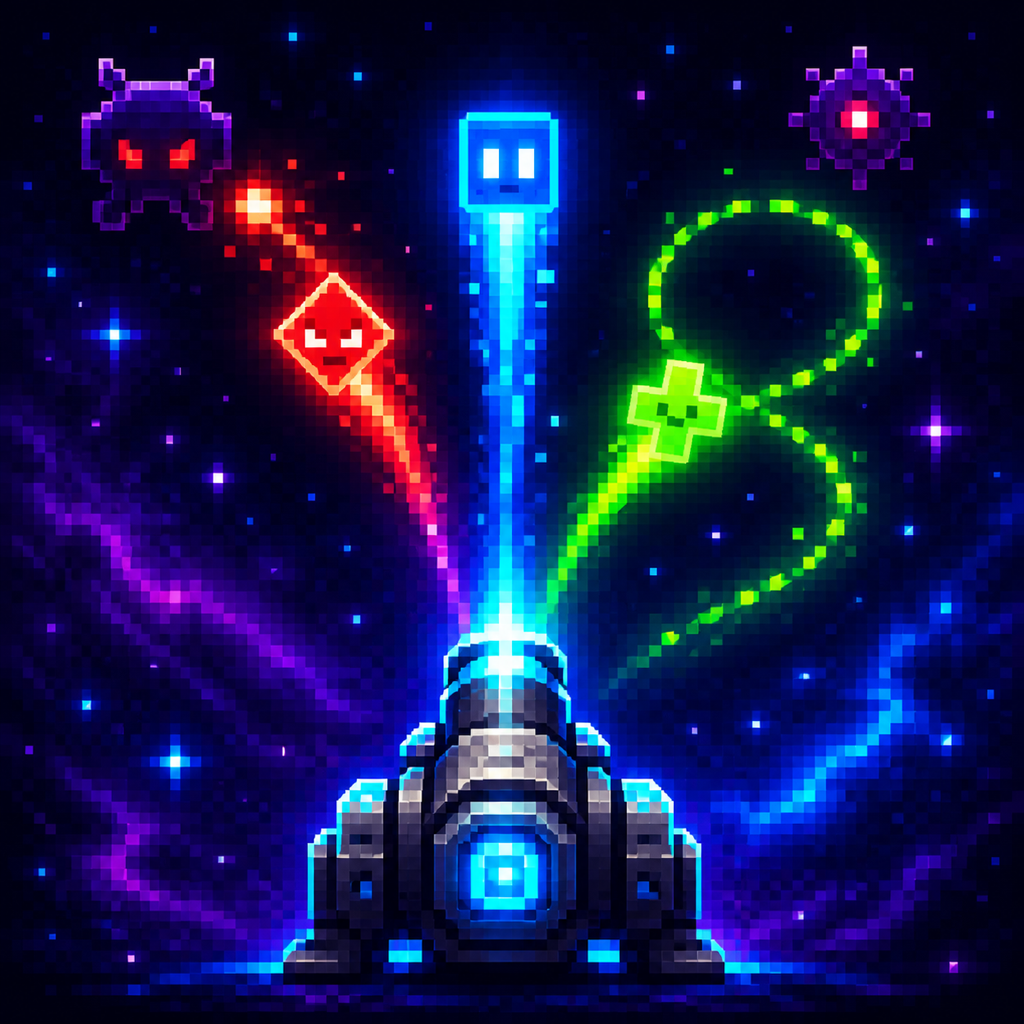 Lazy Space ShooterUpgrades, rankings & purchases
Lazy Space Shooter help
Help with battles, equipment, rankings, purchases, and privacy choices.
New name, same game
Lazy Space Shooter was previously called Tap for a pixel. The new name is rolling out across the stores and app updates. Update the existing app to keep your saved progress, equipment, and purchases. Do not uninstall it as part of the name change.
At a glance
- Play an endless one-thumb arcade defense with manual fire, automatic fire, an upgradeable rechargeable Pulse, and optional accelerated automatic play.
- Survive changing fleets, mini-bosses, regenerating shield networks, Charger and Kamikaze surges, and late-game Reapers, Stingers, Fatherships, and Plasma Bosses.
- Choose temporary upgrades during a run and spend earned boss coins between attempts on permanent hull, shield, damage, Pulse, auto-aim, auto-dodge, support, automatic-upgrade, and upgrade-path equipment.
- Play without an account or subscription. Platform leaderboards and a one-time Remove Ads purchase are optional.
Download and purchases
Get Lazy Space Shooter on the App Store or Google Play.
Lazy Space Shooter is free to download, with no subscription. Remove Ads is an optional one-time purchase with a USD 4.99 base price. It removes interstitial ads and does not buy boss coins or unlock game content. Apple or Google Play displays the local price. Buy or restore it in Settings using the store account that owns the purchase. Apple purchases and Google Play purchases are separate and do not transfer between platforms.
For payment or refund help, use the purchase history and support options in the store where you paid. If ownership is missing, connect to the internet, check the store account, and choose Restore Purchases.
Progress and equipment
Choose temporary upgrades after each wave. Boss coins earned in play buy permanent equipment between attempts. Wave checkpoints, equipment, coins, settings, tutorial progress, and saved upgrade paths remain on this device; there is no developer cloud sync. Closing the post-defeat equipment shop returns to the starting screen.
Shield and automatic upgrades
Shield Core protects your ship from one hit when charged, then recharges. Its glowing hull outline shows when it is ready. Owning it adds Shield Regen to the super-upgrade choices. Optional AUTO UP chooses a balanced mix of run upgrades and turns off after defeat. Capital Hunter and Shield Breaker join the basic choices from Wave 61.
Ads and privacy choices
Without Remove Ads, a non-personalized interstitial may appear after defeat when the equipment shop closes. It may appear once 15 minutes have passed since launch and the previous ad, or after every third defeat. Showing an ad restarts both counts.
Refusing consent, an unavailable ad, or a network error never blocks the next attempt. Where required, Settings → Privacy Choices reopens the consent form. Read the privacy choices guide.
Rankings and reset
The trophy button shows device scores and optional global all-time and weekly rankings. iPhone uses Game Center; Android uses Google Play Games. The two services have separate leaderboards. If sign-in or the service is unavailable, device scores remain accessible.
Reset Game requires confirmation, clears gameplay progress, equipment and coins, and restarts the tutorial. It does not cancel Remove Ads or erase submitted platform scores. On Android, audio and privacy preferences may remain. Settings also lets you end a round or replay the tutorial.
Important limitations
- The iPhone edition requires iOS 17 or later. The Android edition requires Android 10 or later and a compatible 64-bit ARM device.
- Progress and equipment stay on the device. Android cloud backup is disabled. Apple-managed backups depend on device settings. Reinstalling can lose local progress; there is no developer cloud restoration or cross-platform save transfer.
- Later enemy fleets and upgrade-path starting waves require progression. Automatic dodging does not guarantee protection.